Frequently Asked Questions
🌟 What Do I Get:
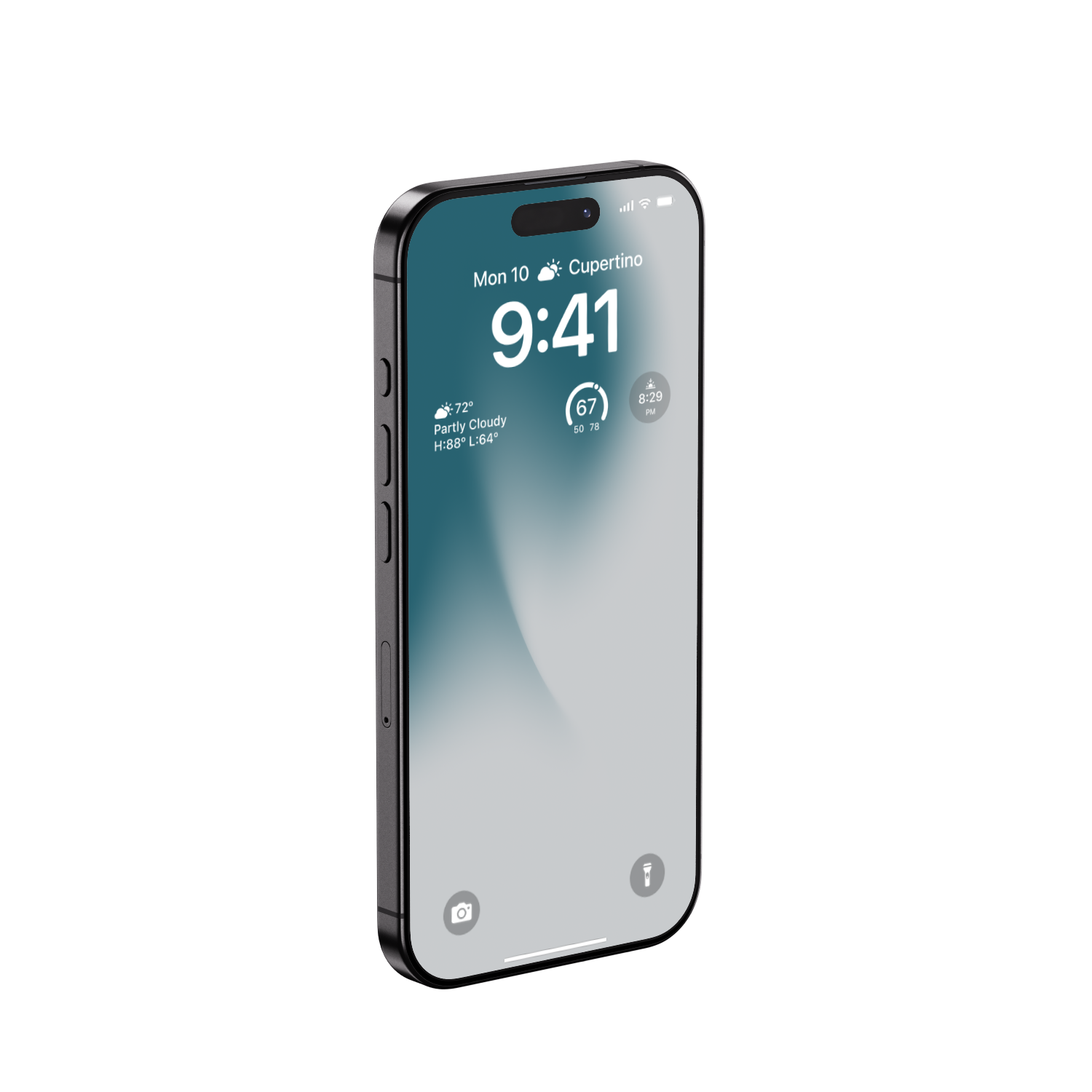
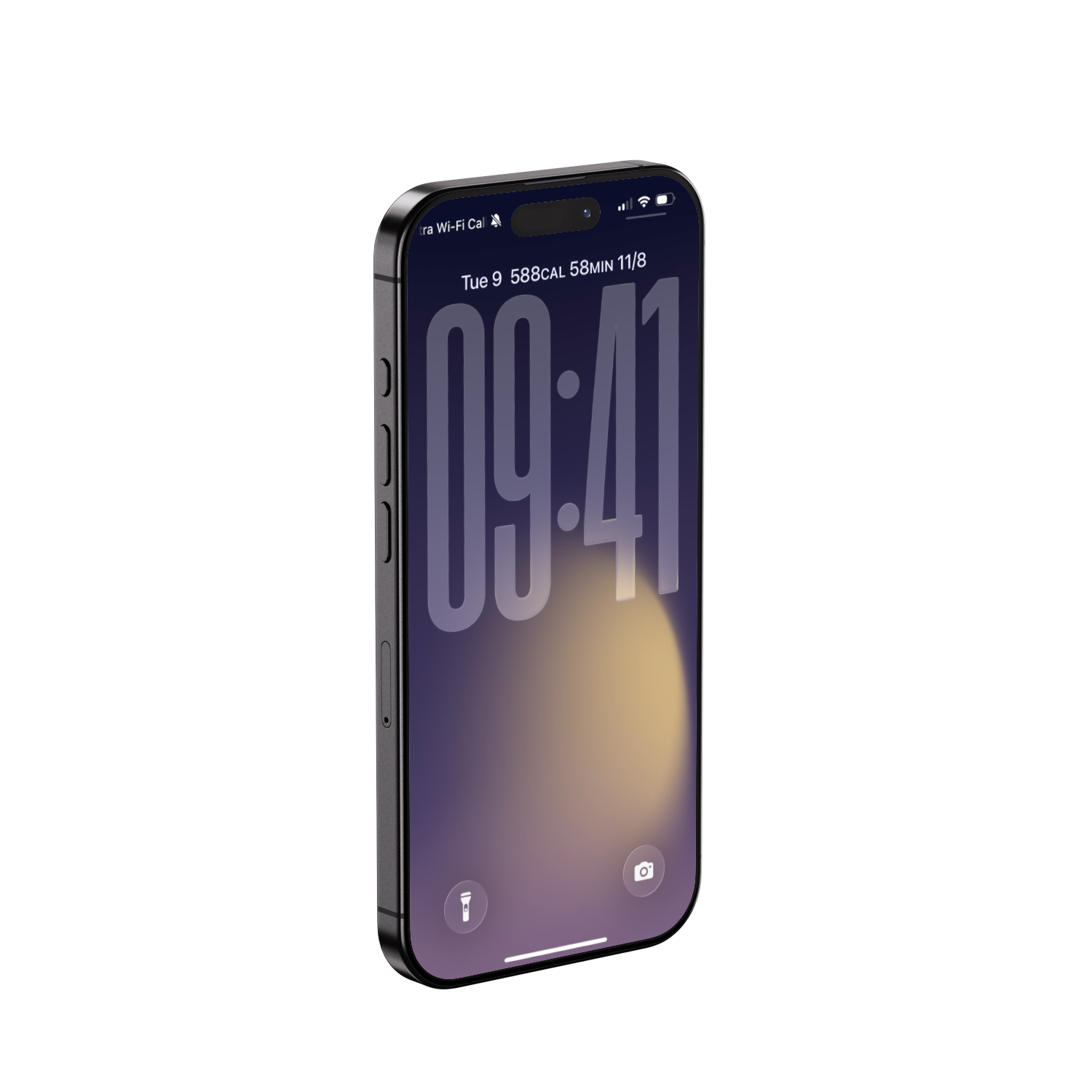
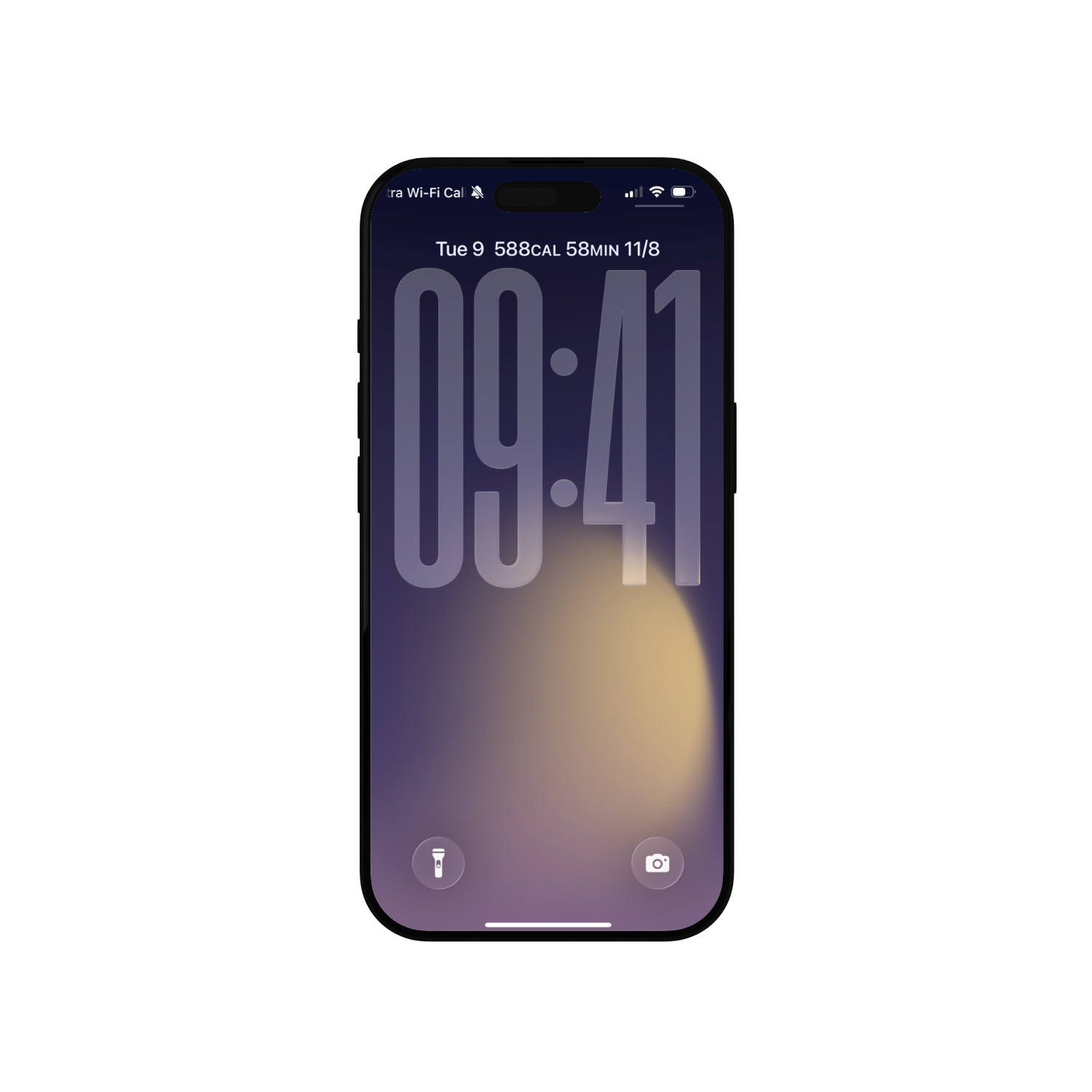
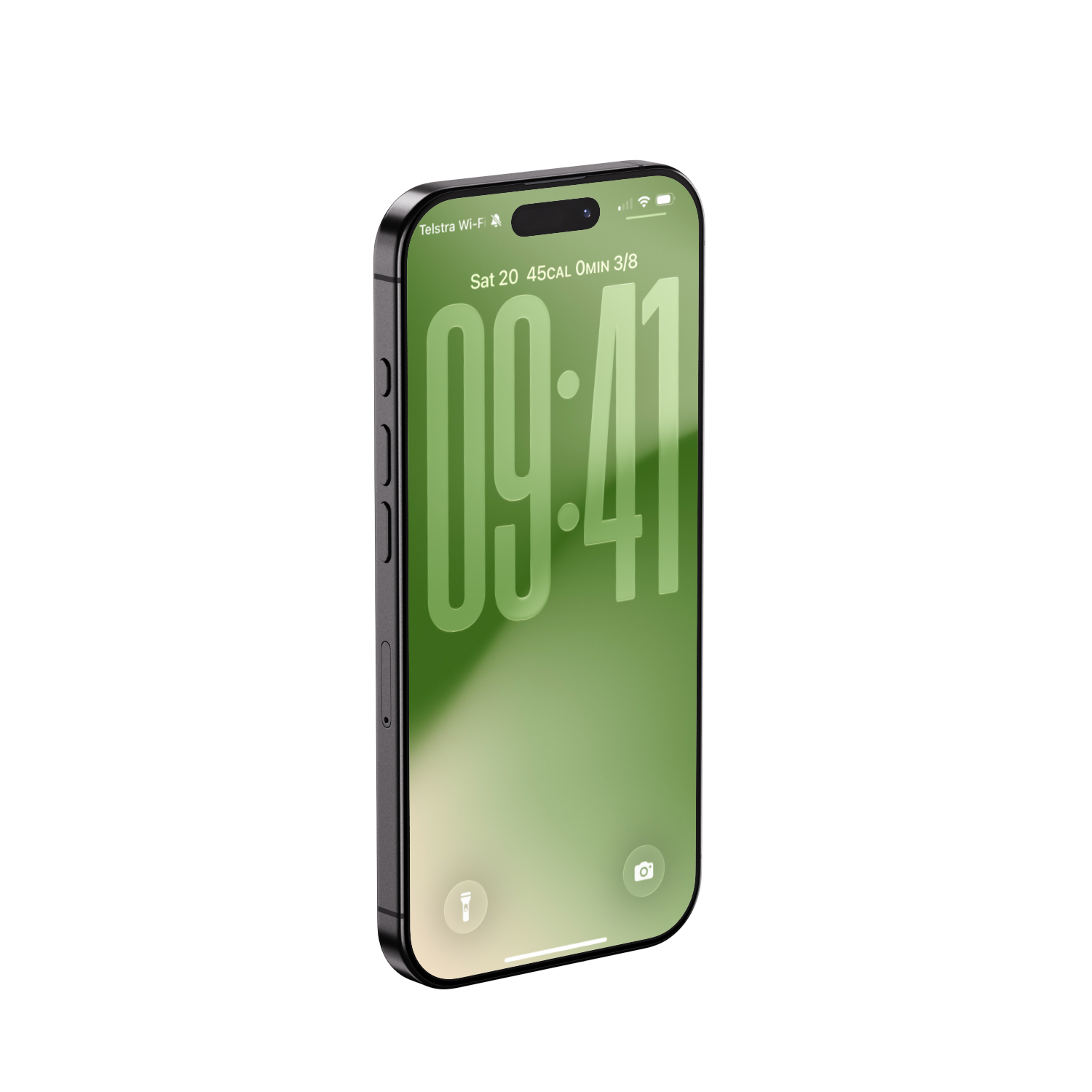
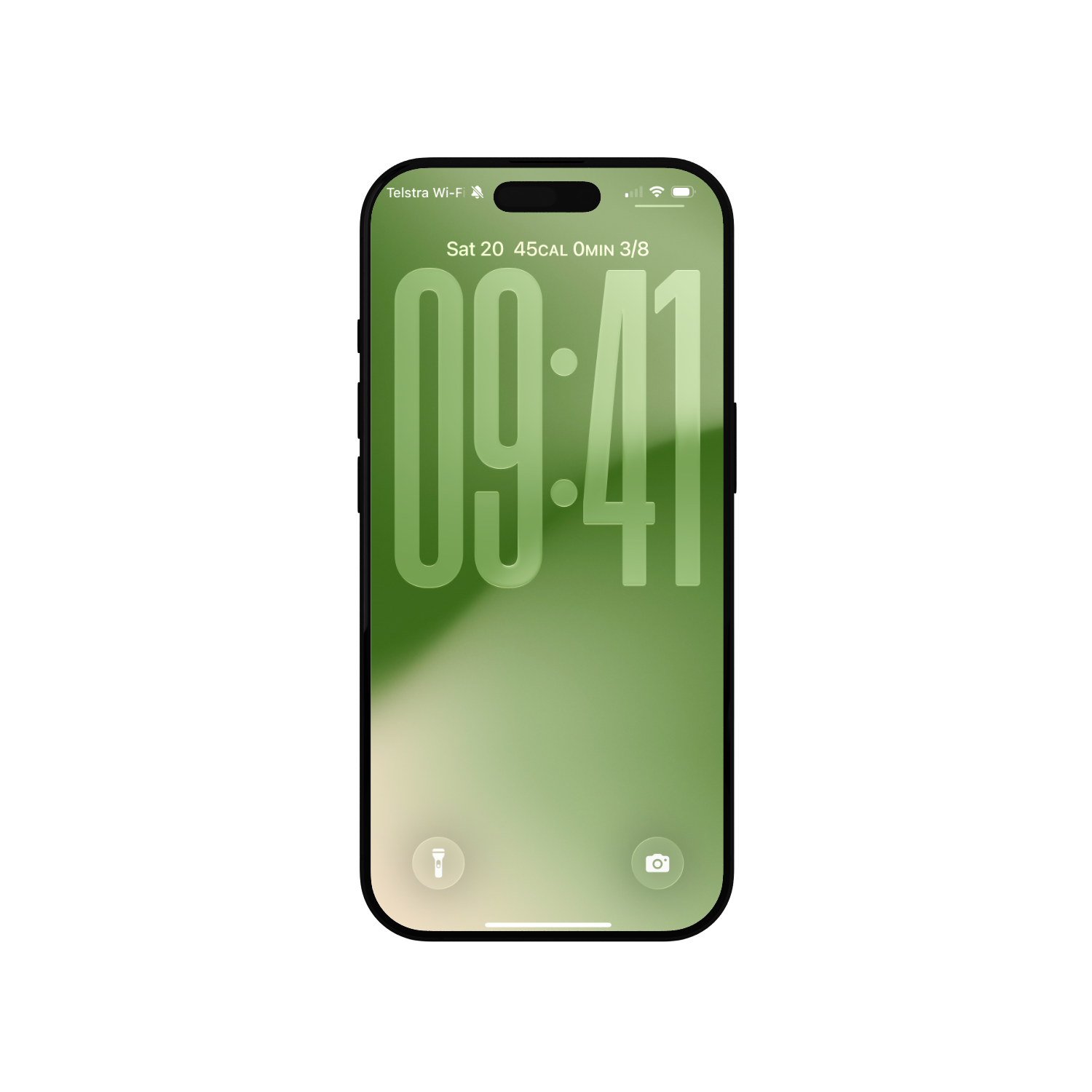
1 digital wallpaper as shown in the listing for iPhone
🖼️ Resolution:
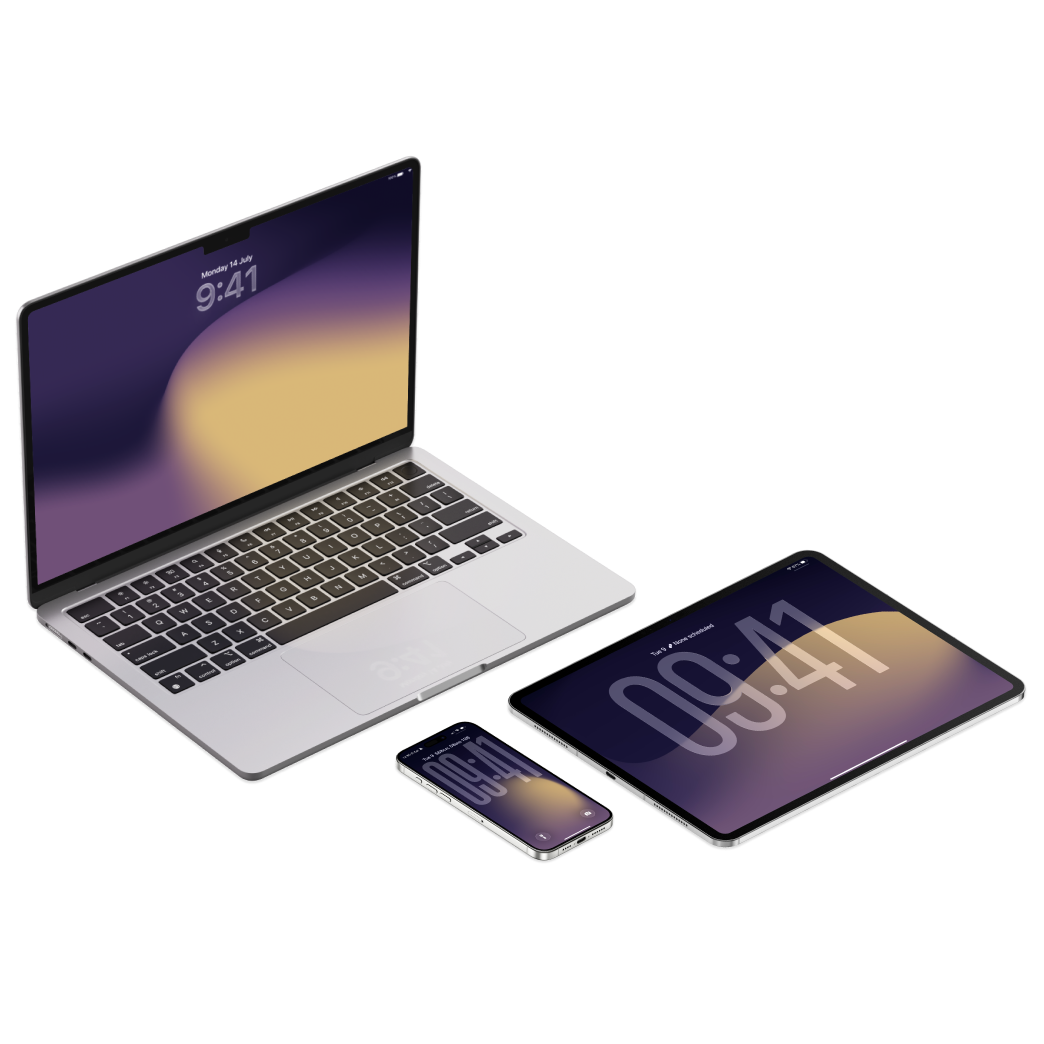
1320x2868 pixels for iPhone
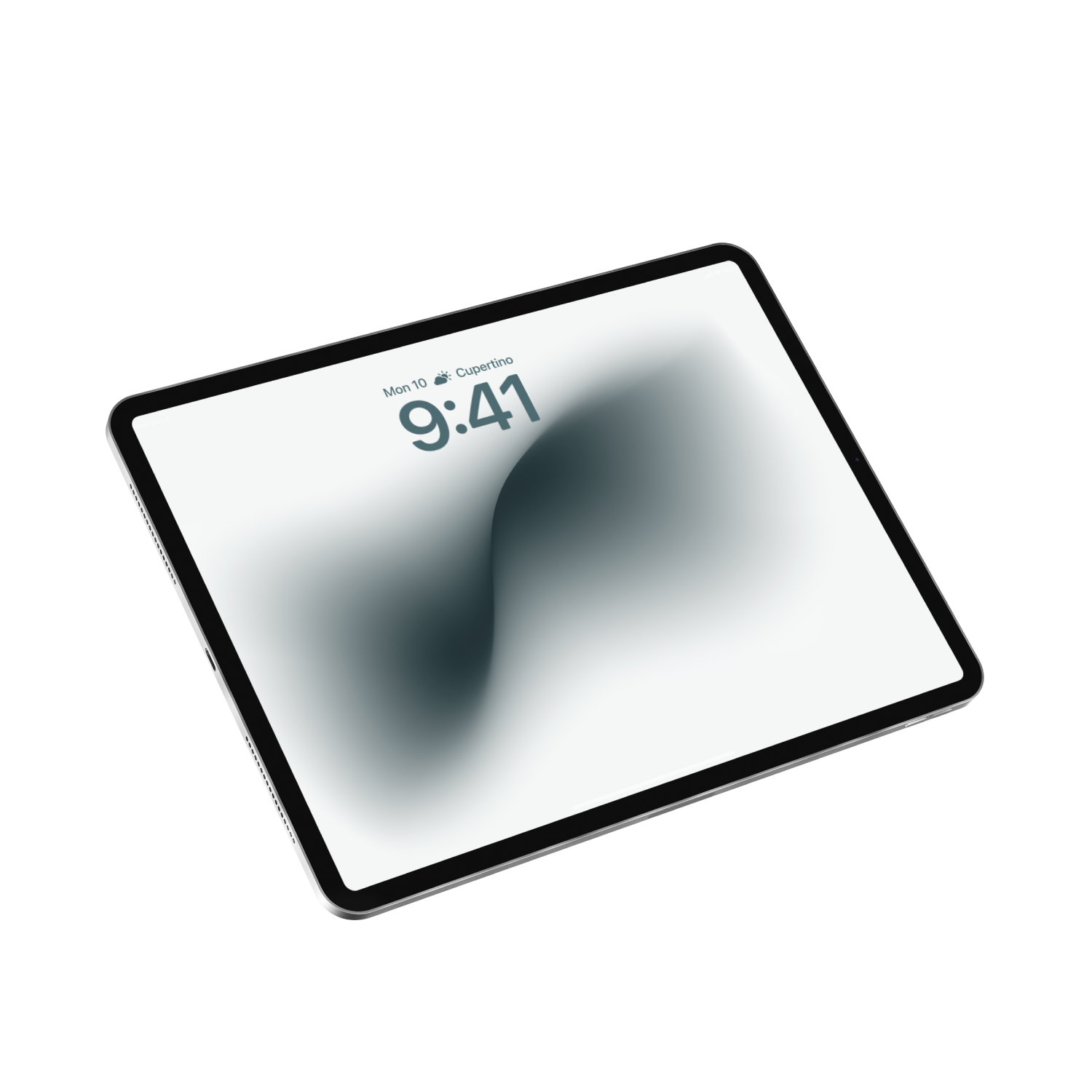
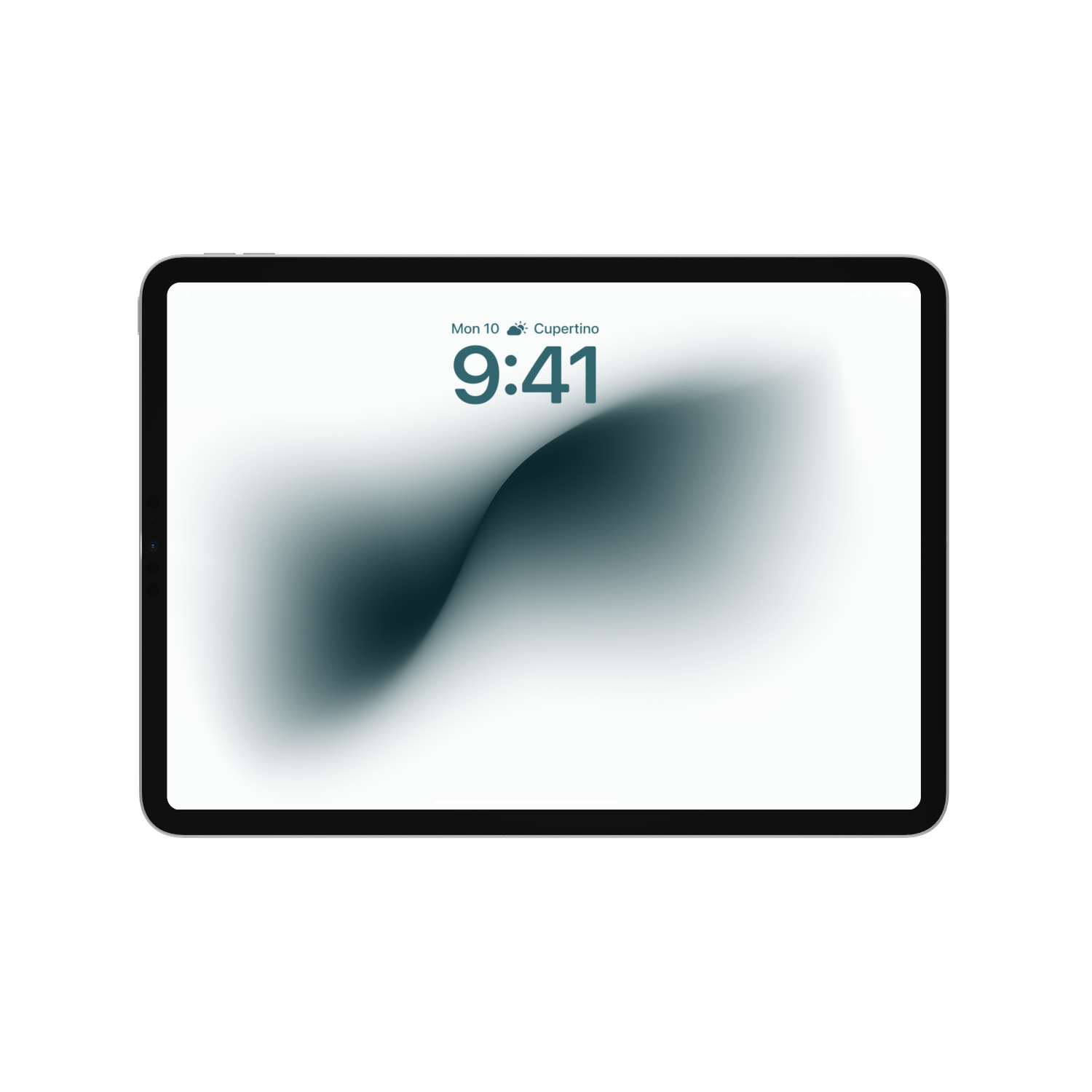
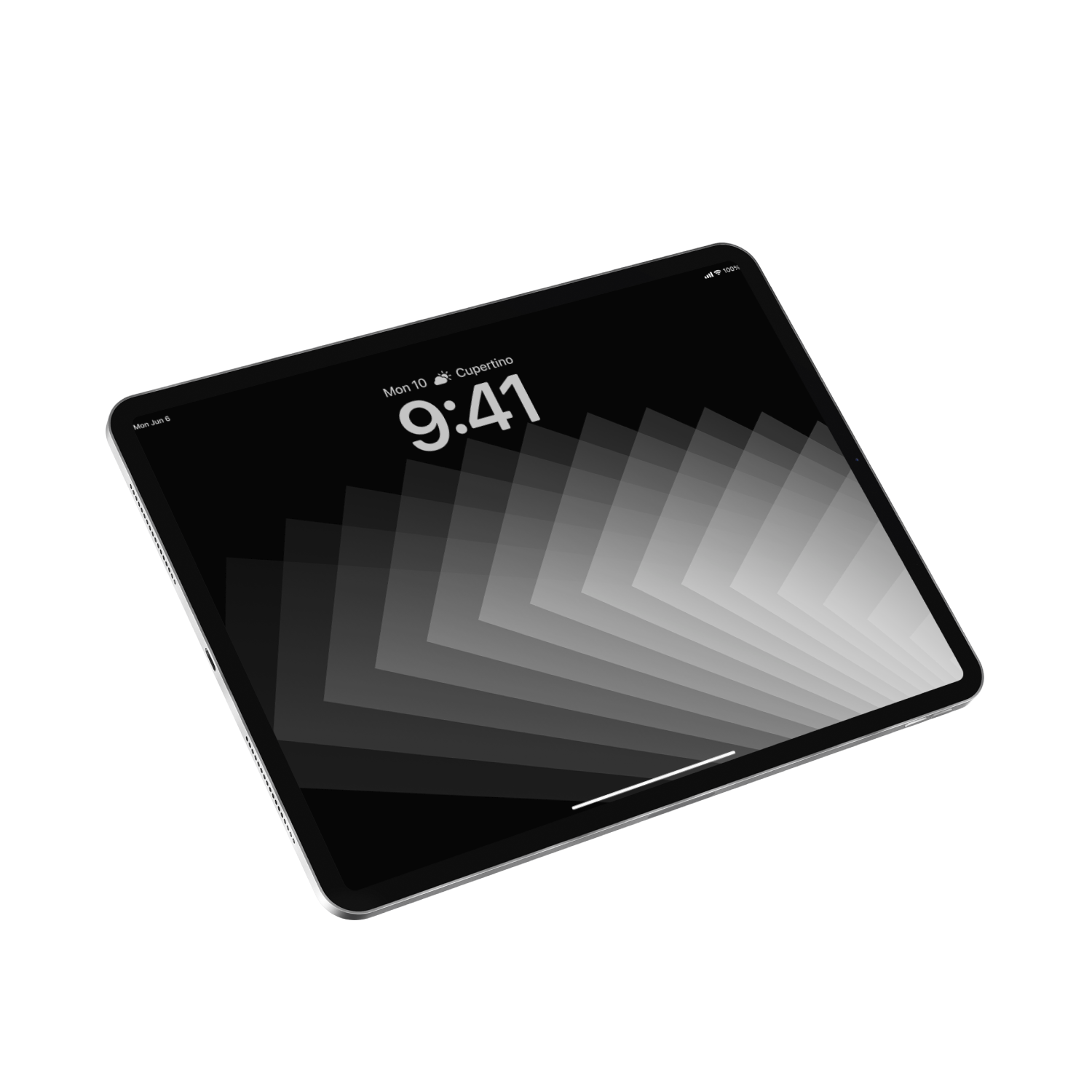
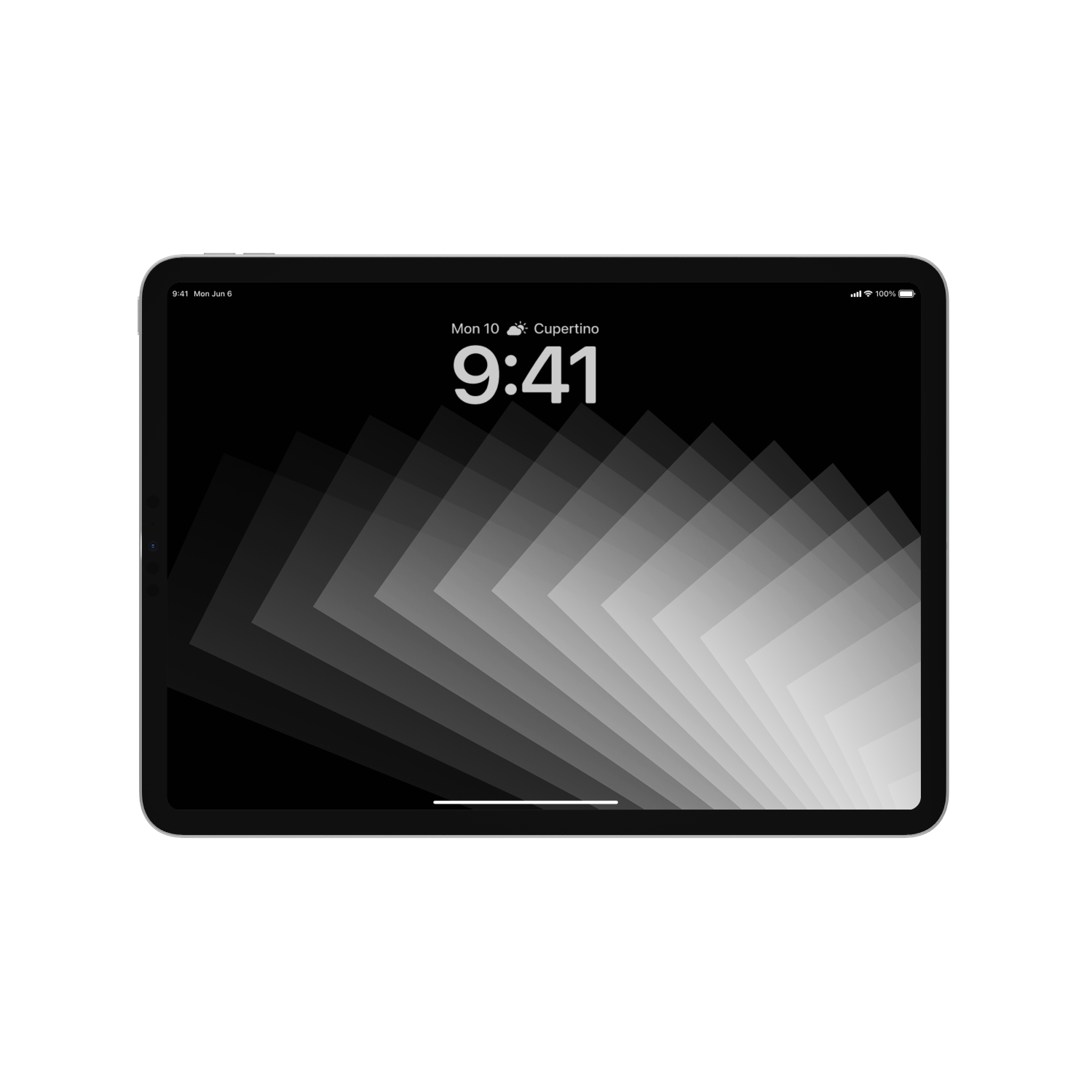
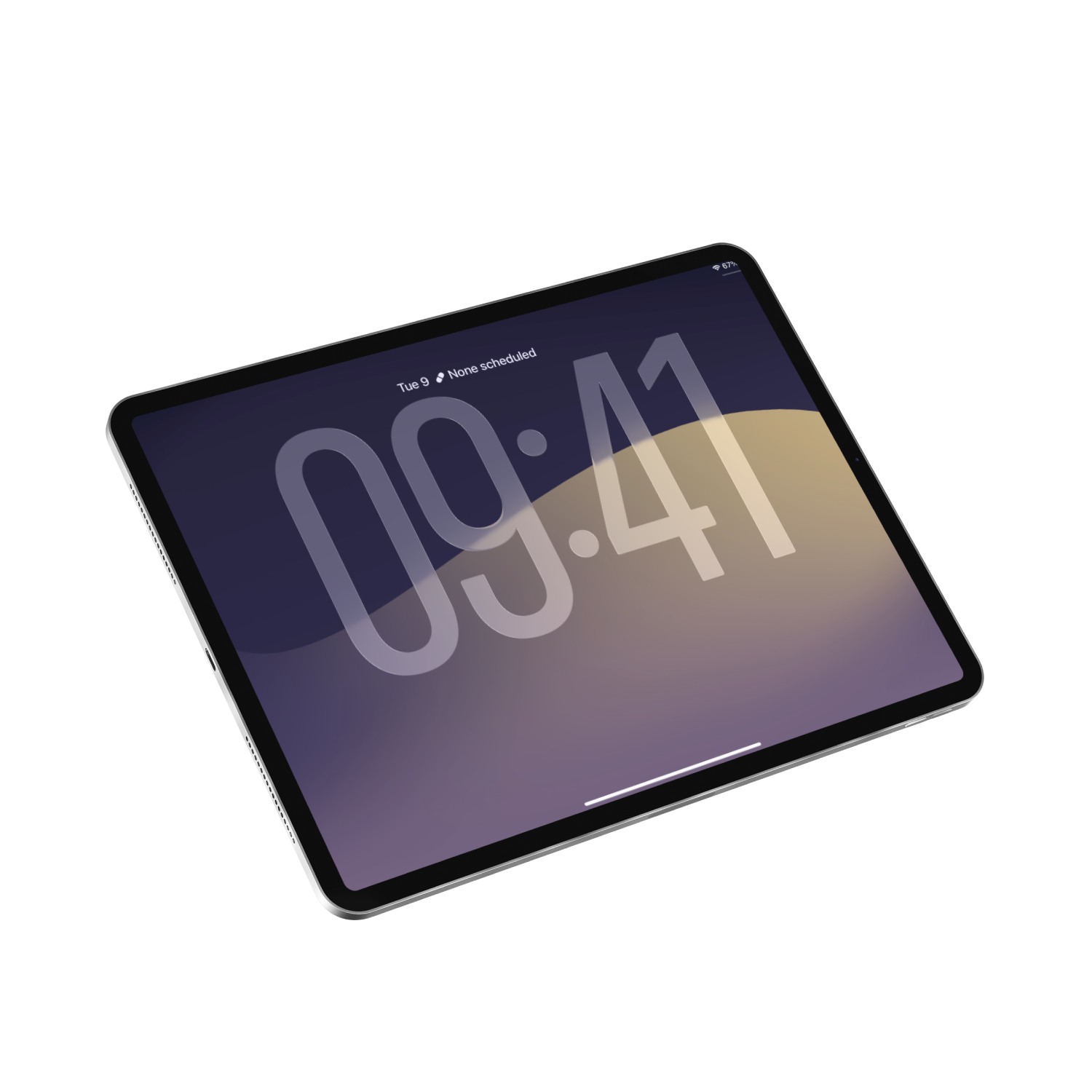
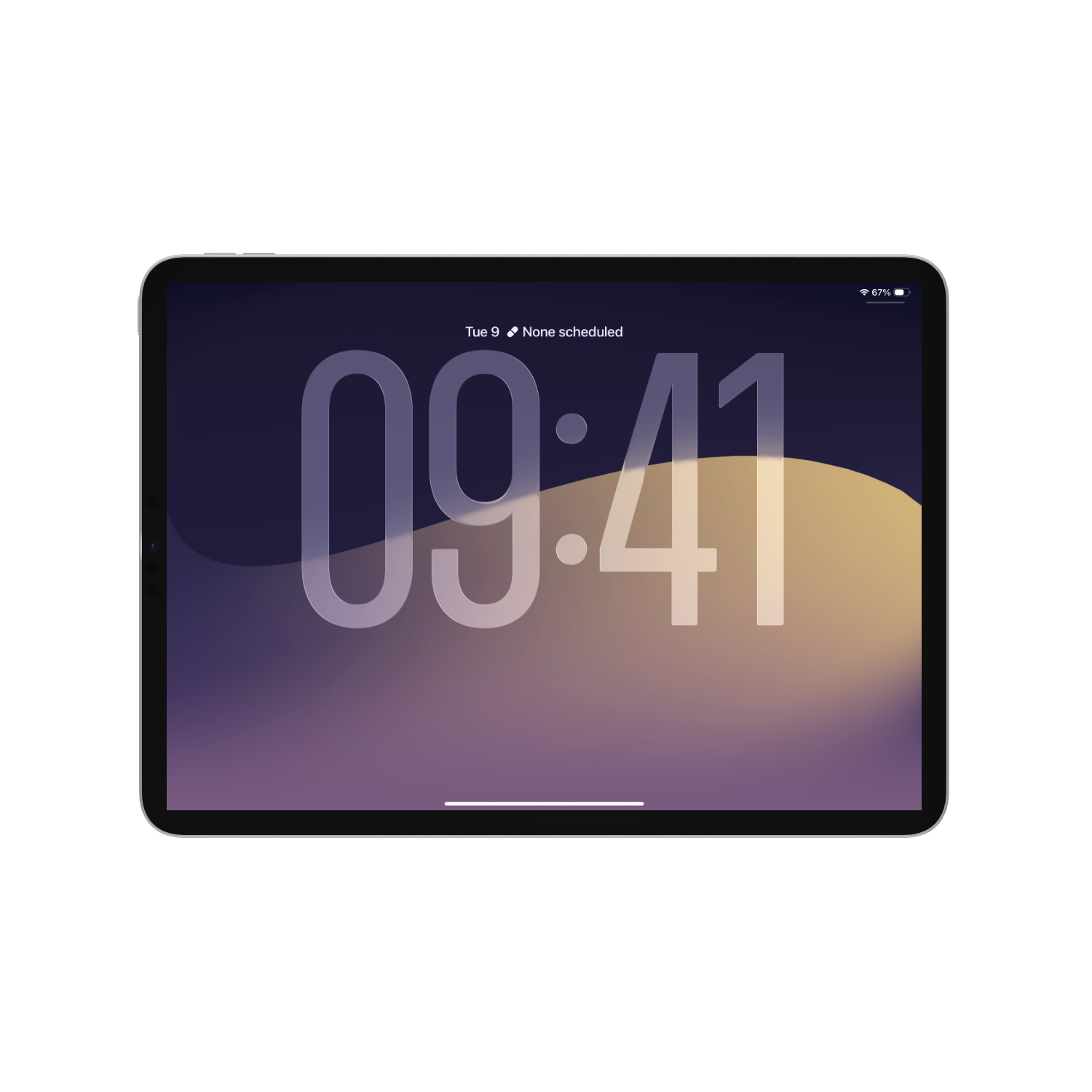
3824x2868 pixels for iPad
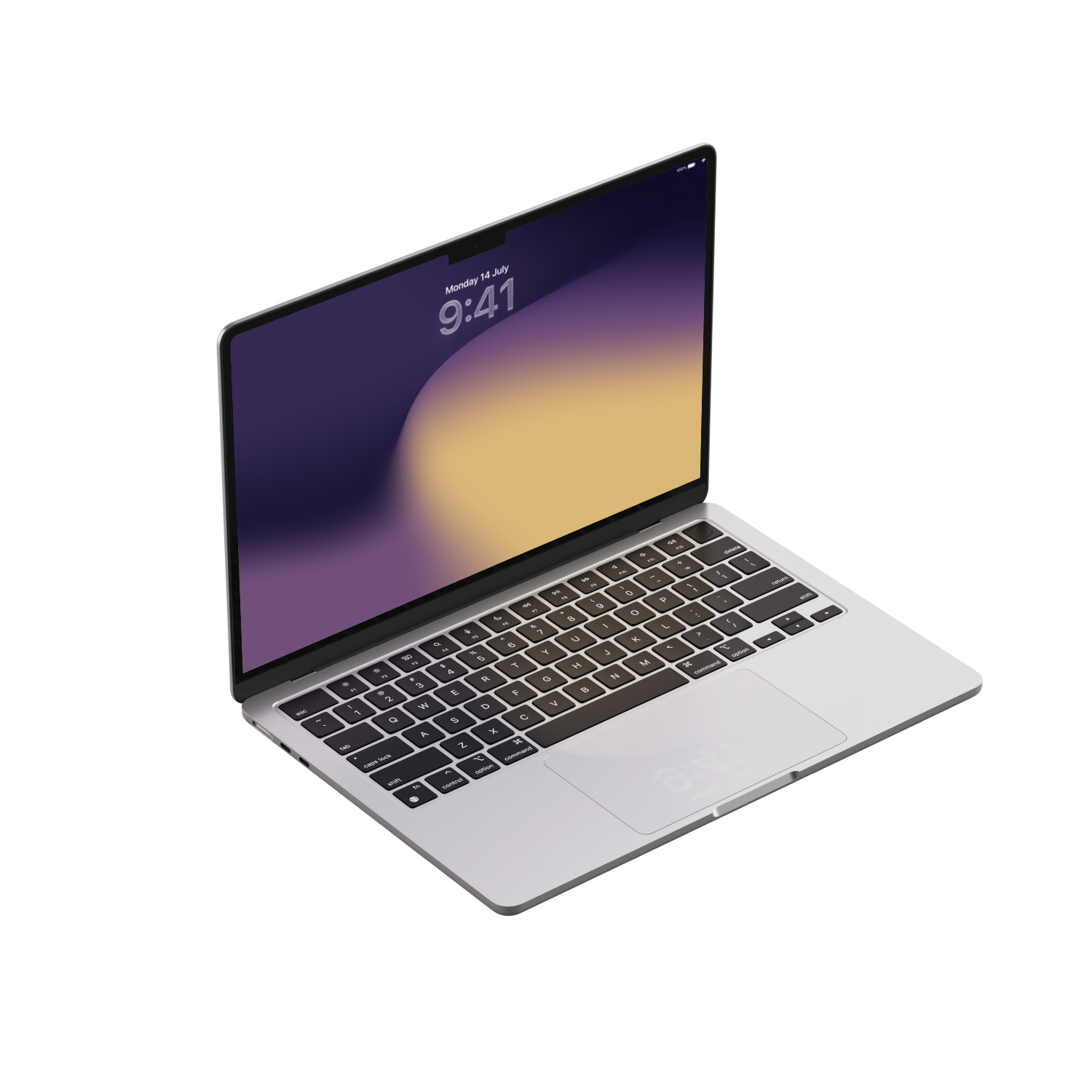
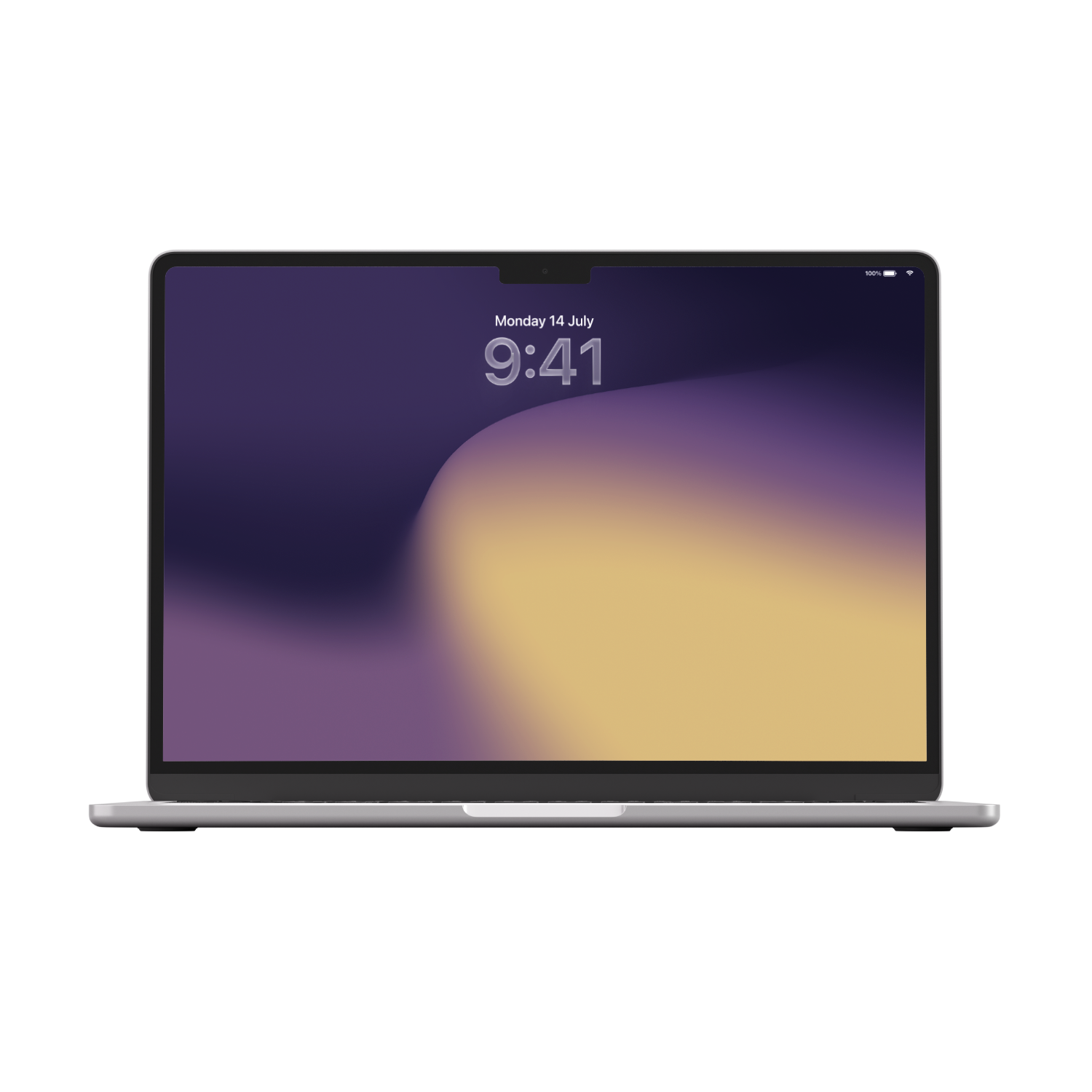
4589x2868 pixels for MacBook
🛒 How to Does it work:
Add the wallpapers you’d like to get to shopping cart,
navigate to your shopping cart, where you’ll see Apple Pay or Google Pay (depending on your device) for quick checkout without account registration.
follow the prompts to complete your payment. You may need to provide an email address to receive your download link(s),
download the digital file(s) from the link(s) you receive in your email.
📱 How to Set as Wallpaper on iPhone or iPad:
Go to your Photos app and select the downloaded image.
Tap the "Share" icon (square with an arrow pointing up).
Scroll down and select "Use as Wallpaper."
Adjust the position and zoom if desired, then tap "Set."
Choose whether to set it for your Lock Screen, Home Screen, or both.
💻 How to Set as Wallpaper on MacBook:
Go to System Settings (or System Preferences on older macOS versions).
Click on "Wallpaper" (or "Desktop & Screen Saver").
Click the "Add Folder..." or "Add Photo..." button (or the "+" button).
Navigate to where you downloaded the image, select it, and click "Choose."
The wallpaper will automatically apply. You can then adjust options like "Fill Screen" or "Fit to Screen" if available.
🗒️ Good to Know
Wallpapers are designed using native resolution ratios that work better for Apple devices, but still compatible with others. Wallpapers may be cropped or filled depending on the settings on your devices.
Colors maybe slightly different depending on your devices hardware and settings.